

Overview
This guide explains how to bulk set the Parent Company field using CSV import (update).For basic CSV import steps (template download, mapping, etc.), see: How to bulk create or update company records via CSV.Preparation
- Create a Company to Company association for the parent relationship (e.g., “Parent Company” and “Subsidiary”).
- Make sure both parent and child company records already exist in Sanka.
- Record the Company ID (or your unique ID) for both parent and child records.
Prepare the CSV
Include at least these two columns:- A column that identifies the company to update (e.g.,
Company ID) - A column that specifies the parent company (e.g.,
Parent Company)
0001(ABC Co., Ltd.) is already registered as the parent0002(XYZ Corporation) is already registered as the child -> set parent to0001
Update via CSV
- Open Import from the Company object and select CSV file.
- Upload the CSV you created.
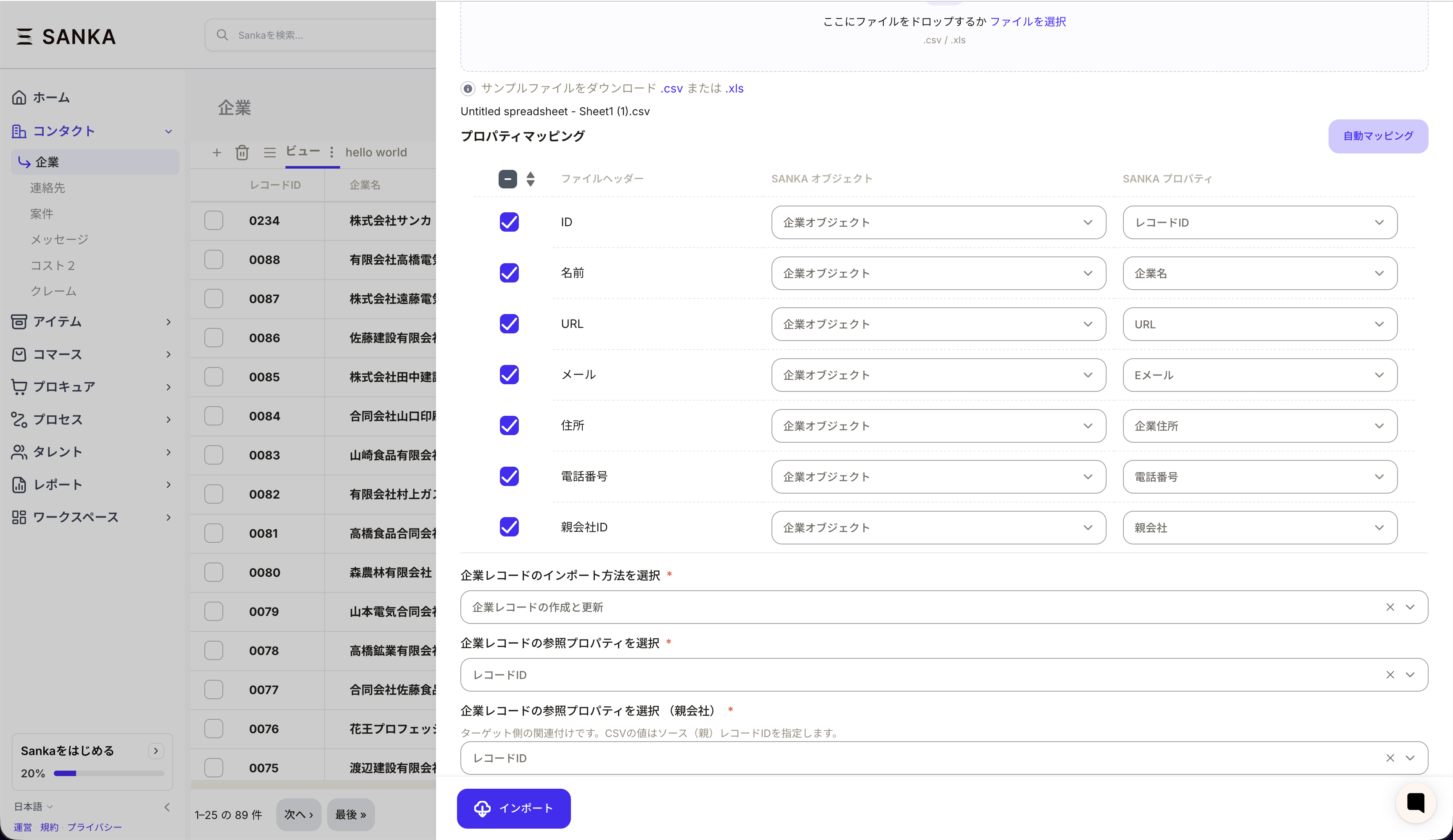
- In the mapping table, map the CSV Parent Company column to the parent company association you created.
- Select Update company records.
- Set the Company key property to
Company ID(or your unique ID) and run the import. - Open a child company record and confirm the parent company is set.
Operational Tips
- Test with a small set of records first.
- Parent-child links require both records to exist in advance.
- For multi-level hierarchies, set parents top-down to avoid errors.
- To remove a link, clear the parent column and test with a small set first (behavior can vary by environment).
- For error and history details, see CSV Import/Export Errors.