

What you’ll achieve
This page explains how to build a workflow that imports HubSpot deals into Sanka Orders, automatically creates Slips (revenue allocation), and optionally syncs them back to HubSpot.Overview (this setup)
In a scheduled workflow (time trigger), you will:- Import HubSpot deals into Sanka orders
- Delete existing slips (cleanup to avoid duplicates or leftovers)
- Create slips from orders (revenue allocation)
- Export created slips to a HubSpot custom object (optional)
Prerequisites
- HubSpot and Sanka are connected
- If not, see How to connect HubSpot and Sanka.
- A HubSpot custom object to receive slips (e.g., Revenue Allocation) is prepared
- Required properties exist in Sanka for Orders and Slips (e.g., Deal ID, Amount, Currency, Term/Days)
- We recommend testing in a new workspace before going live
Steps
1. Create a workflow (time trigger)
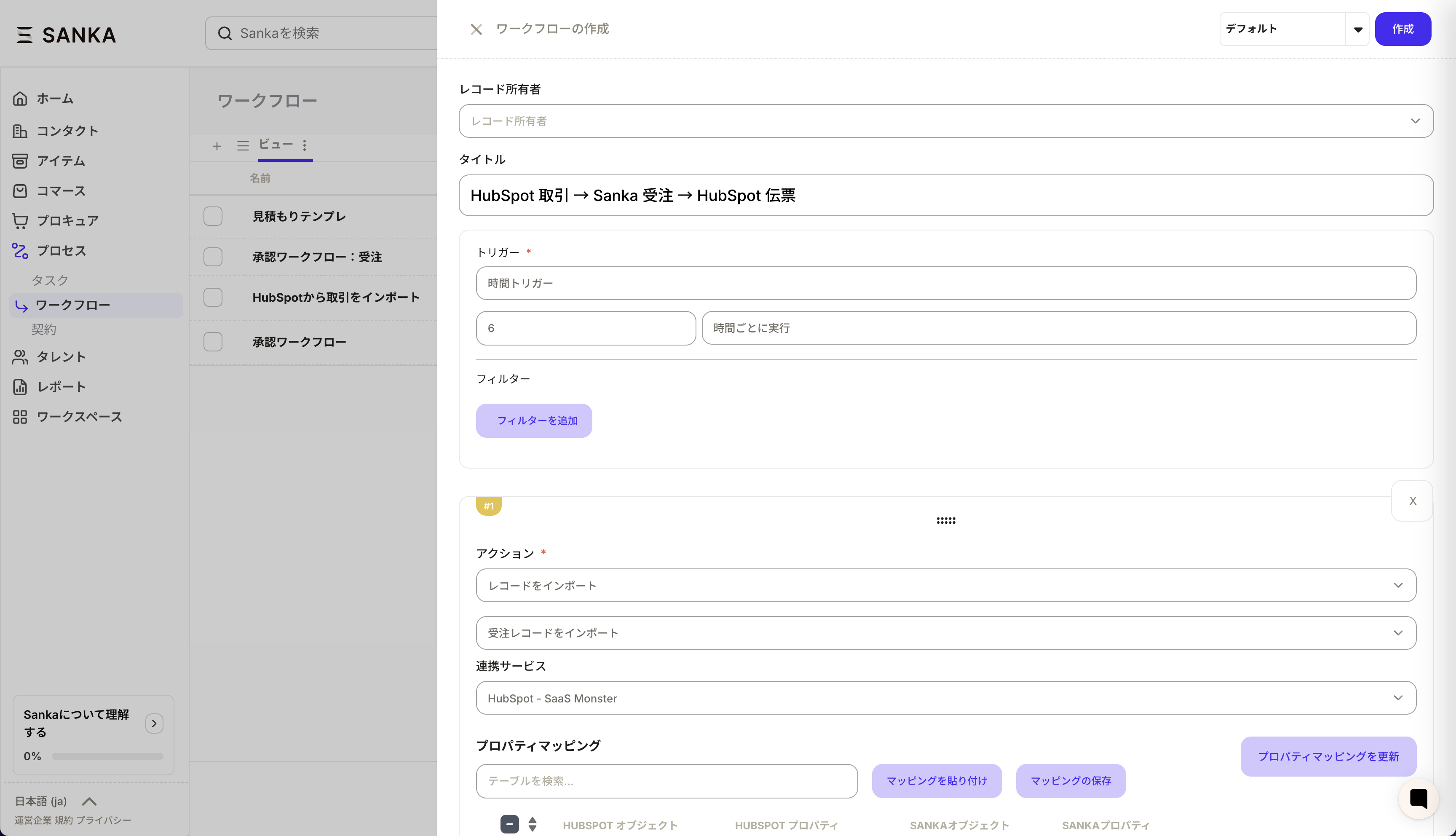
- In Sanka, open Workflow and select Create workflow.
- Give it a title (e.g.,
HubSpot Deal -> Order -> Slip (Revenue Allocation)). - Choose Time trigger and set the interval (e.g., every 6 hours).
- Add filters if needed (e.g., target period, stage, sync flag).
2. Action 1: Import HubSpot deals into Orders
- Choose Import records.
- Select Order as the object.
- Pick HubSpot as the integration service.
- In Property mapping, map HubSpot deal properties to Sanka order properties.
- Save the mapping (so you can reuse it later).
- HubSpot Deal ID -> Sanka Deal ID (store on the order)
- Amount (net or gross, based on your operation) -> Order total amount
- Currency -> Order currency
- Term or duration fields -> Order period properties (used for allocation later)
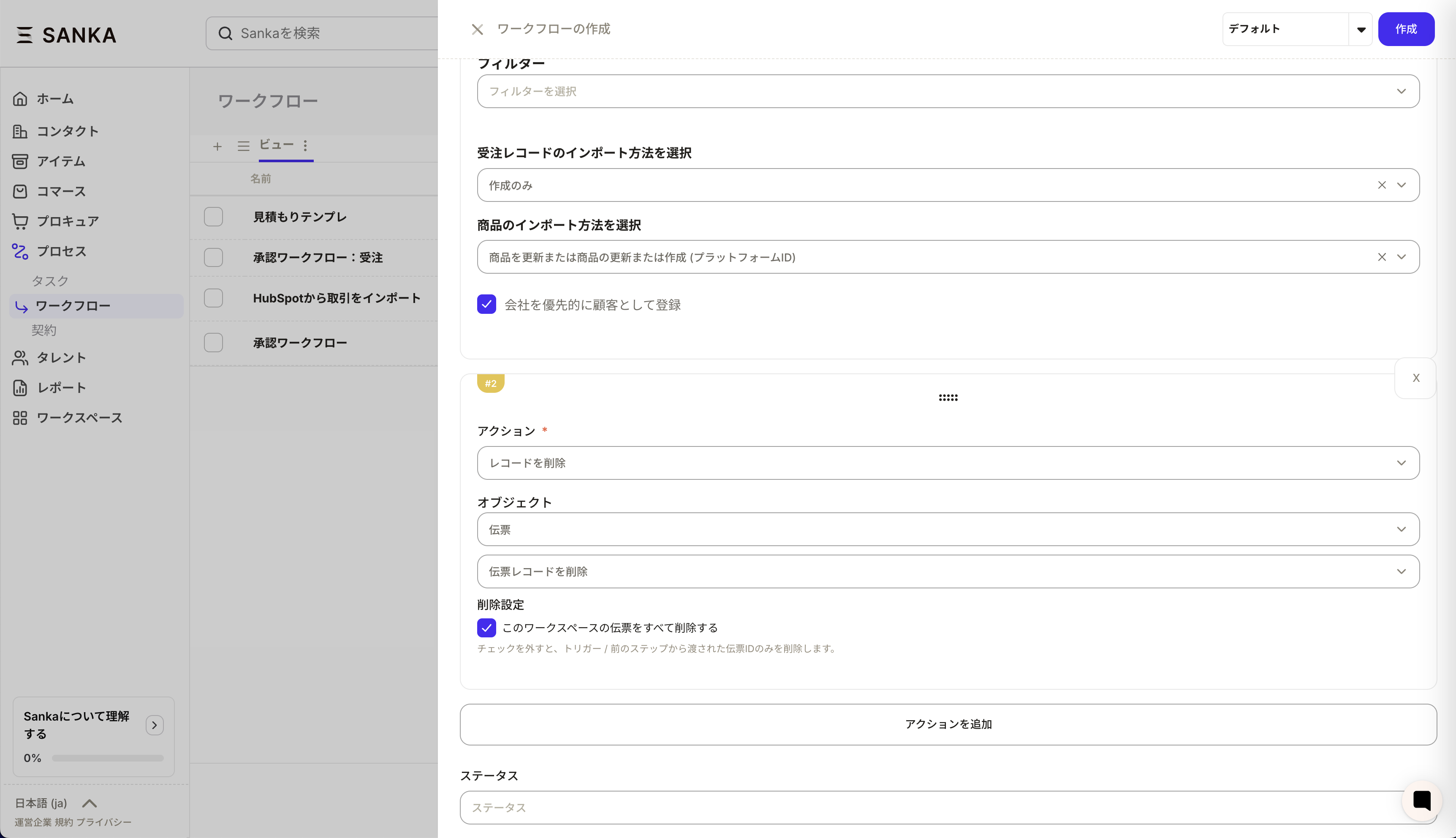
3. Action 2: Delete existing slips (cleanup)
- Choose Delete records.
- Select Slip as the object.
- Set the deletion criteria.
- Delete all slips in this workspace is risky because it removes every slip in the workspace. Unless this workspace is dedicated to revenue allocation slips, narrow the deletion scope.
- If possible, filter by Slip type, Created by (integration/import), or Target period to delete only auto-created slips.
4. Action 3: Create slips (revenue allocation) from orders
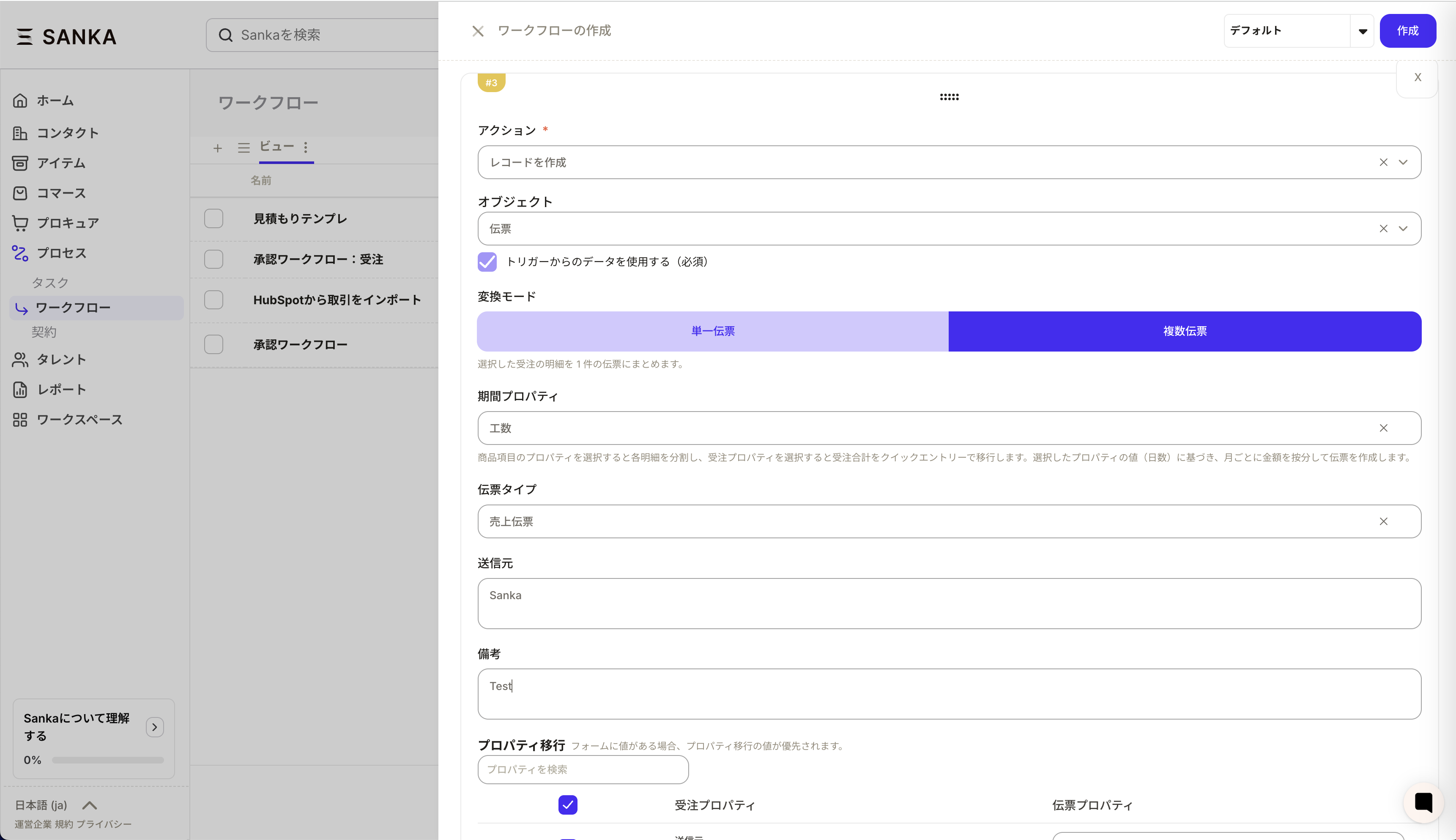
- Choose Create records.
- Select Slip as the object.
- Enable Use data from trigger.
- Choose a conversion mode.
- Single slip: create one slip per order
- Multiple slips: split revenue and create multiple slips (e.g., monthly)
- For revenue allocation, specify the period properties (e.g., number of days). Based on the configured values, Sanka will allocate the amount by month and create slips.
- Set the slip type (e.g., Sales slip) and any fixed values (source, notes, etc.).
- In Property transfer, map fields to carry over from order to slip (Deal ID, owner, etc.).
5. Action 4: Export slips to HubSpot (optional)
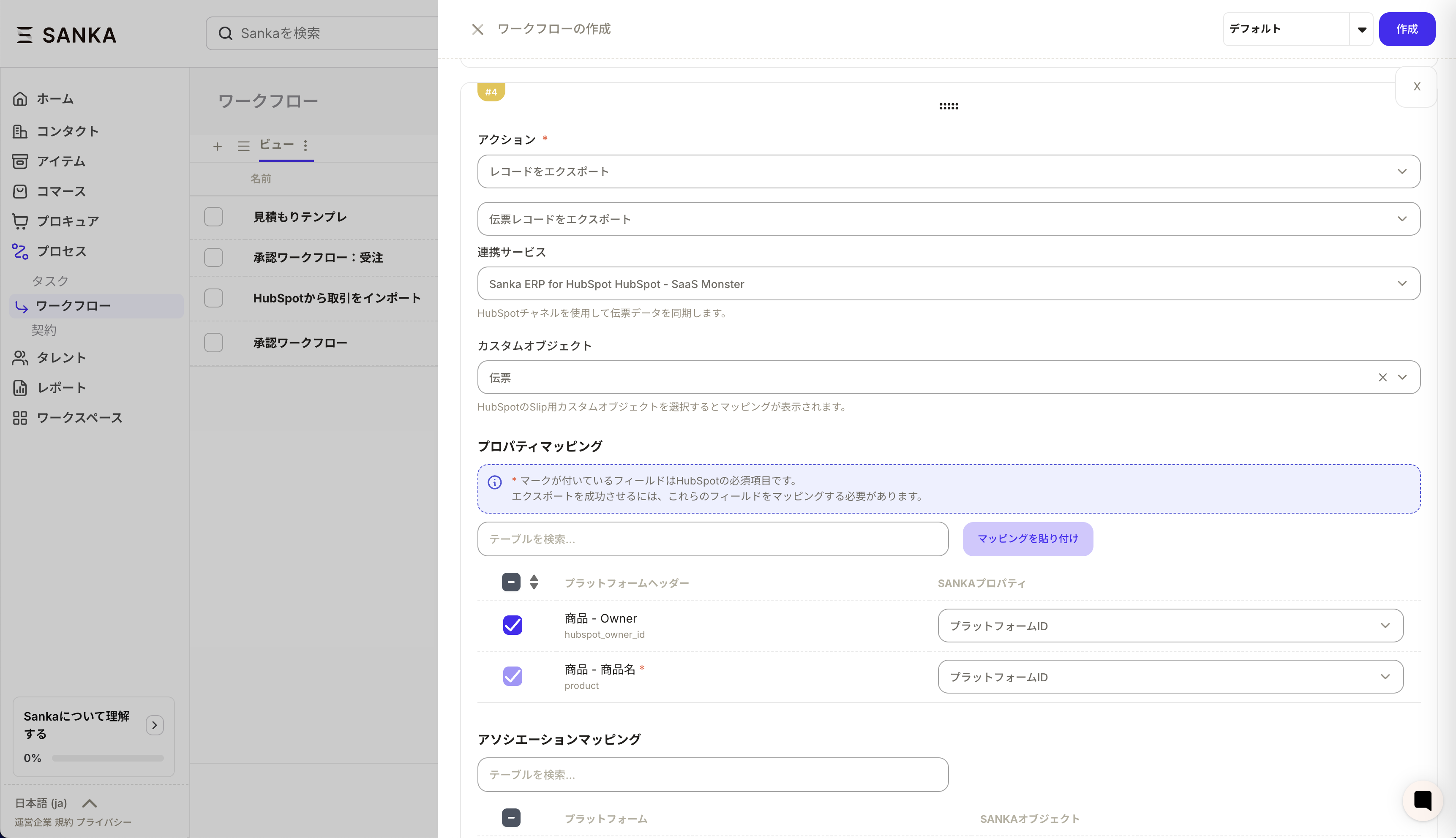
- Choose Export records.
- Select Export slip records.
- Pick HubSpot as the integration service.
- Choose the destination HubSpot custom object (e.g., Revenue Allocation).
- Map properties so all required HubSpot fields are filled.
- Amount (net or gross based on your operation)
- Currency
- Deal ID (to link to the right deal)
6. Save and validate
- Save the workflow.
- Prepare one test deal and wait for the scheduled run (or run manually).
- Confirm:
- Orders are imported
- Slips (revenue allocation) are created with expected counts and totals
- The HubSpot custom object is updated (if needed)
Common pitfalls
- Slips keep duplicating
- The delete action may not be running or the criteria are too broad.
- No slips are created
- Import filters may be too strict or required fields are missing in mapping.
- Allocated amounts look wrong
- Period fields (e.g., days) are empty or the units are incorrect.
- Export to HubSpot fails
- Required HubSpot fields are not mapped or the integration permissions are missing.